How to Make a Digital Closet (Step by Step)
A digital closet is a photo of every piece of clothing you own, sorted so you can scroll through it like a shop. Once it exists, you can plan outfits from the couch, see what you never wear, and stop buying a fourth pair of black jeans.
Making one is mostly a photo session plus a little sorting. Here is the whole process.
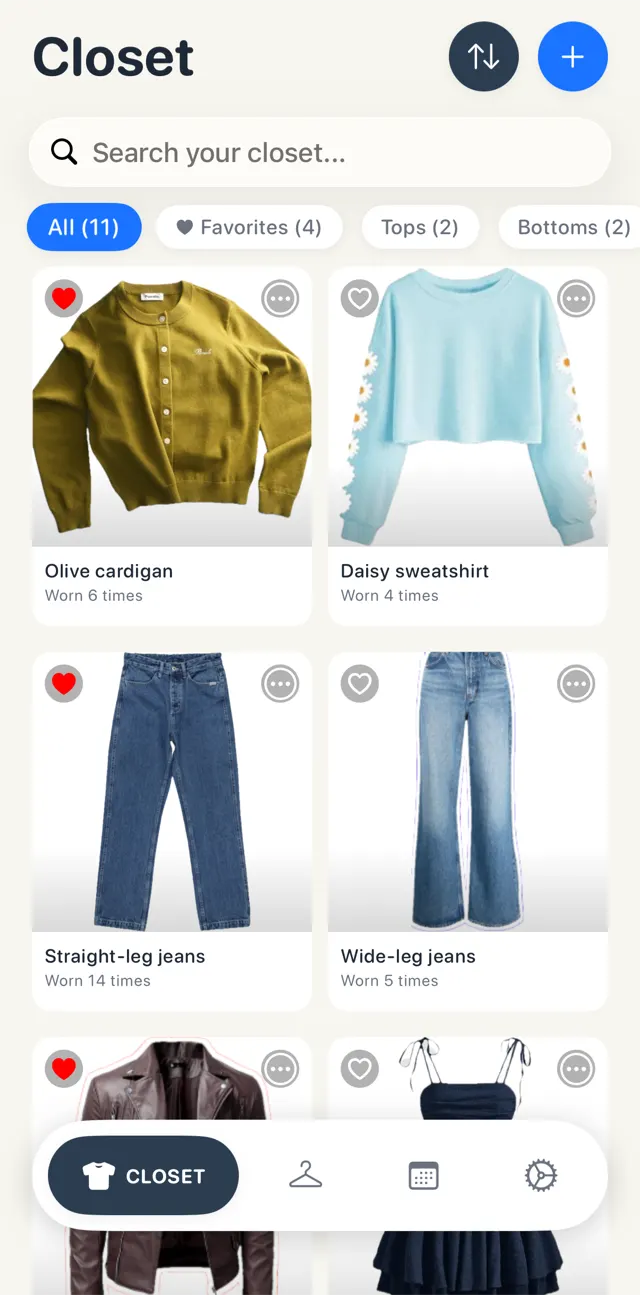
The short version: clear a small photo spot with a plain background and good light. Photograph one piece at a time, cut each one out from the background, give it a category, and add a season or occasion only where it helps you get dressed. Start with the clothes you actually wear, one category per session, and add new things the day you buy them.
What you need
- Your phone. Any recent phone camera is plenty.
- A plain background that contrasts with your clothes: a bedsheet, a door, the floor. Light for dark clothes, dark for light ones.
- Daylight from a window, without direct sun. It shows true colors and avoids hard shadows.
- Somewhere to keep the photos: an app made for this, a spreadsheet, or a photo album. More on choosing below.
- A plan for one category at a time, so you finish something each session instead of stalling halfway through a pile.
Step 1: Decide what goes in
You do not need every sock. A digital closet is useful for the pieces you combine into outfits:
- tops, bottoms, dresses, outerwear
- shoes
- bags, belts, scarves and jewelry you actually wear
Skip underwear, plain socks and anything you would never think about when getting dressed. Start with the clothes you wore in the last month. They are already clean, easy to find, and they are the ones you will plan outfits with first. Seasonal storage boxes can wait for a second session.
While you are at it, set aside anything that does not fit or that you keep skipping. There is no point photographing a piece you are about to donate.
Step 2: Set up a simple photo spot
Good photos make the closet nice to scroll, and nice to scroll is what makes you actually use it.
- Lay it flat or hang it. Flat on a bed or floor is easiest. A plain hanger on a door works for jackets and dresses.
- Smooth it out. Fold sleeves in a natural position and straighten the hem.
- Fill the frame. One item per photo, the whole piece in view, shot from straight above or straight on.
- Turn off the flash. Window light gives you real colors, which matters when you are matching a top to a skirt later.
Shoes look best from the side, at a slight angle. Bags look best standing up.
Step 3: Photograph and cut out each piece
A cut-out (the item on its own, with no bed or floor behind it) is what makes a digital closet look tidy, and what lets you put pieces side by side in an outfit.
You can make cut-outs with what is already on your iPhone: open the photo, touch and hold the item, and Apple's lift a subject feature lets you copy it without the background. That works, but doing it for 80 pieces gets old.
A closet app saves that step. In Looksy you take the photo (or pick one from your library) and the app cuts the item out from the background for you, on your iPhone, then shows it with a clean white outline, ready to name.
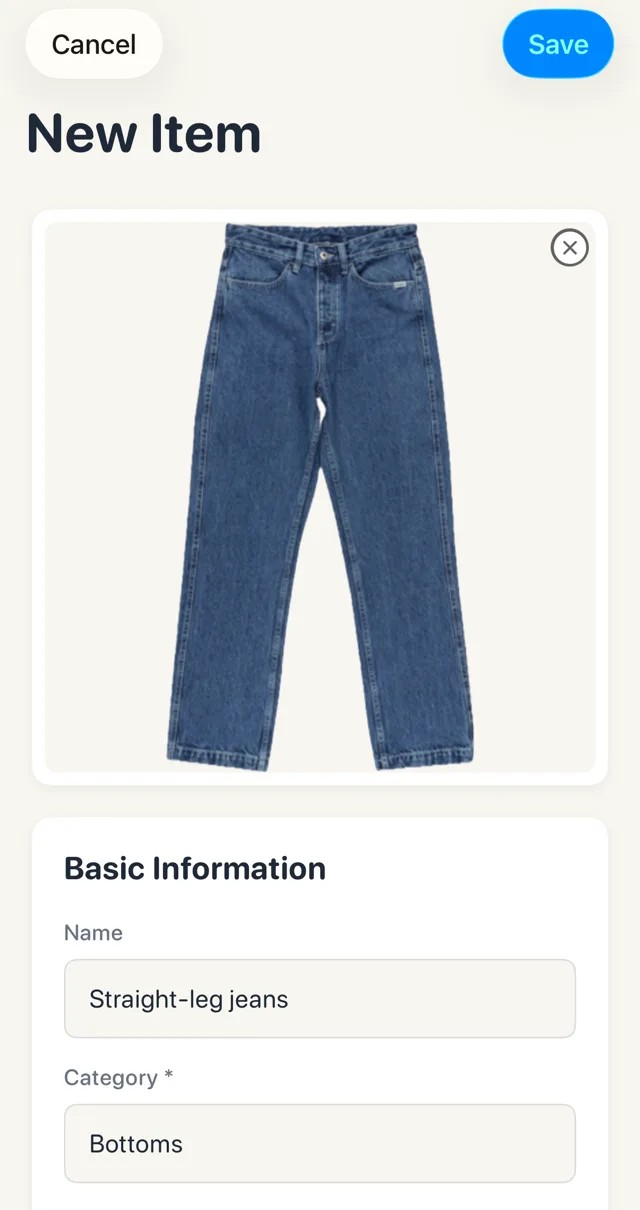
Give each piece a short name you would say out loud: "Straight-leg jeans", "Olive cardigan", "White sneakers". You will search for these names later.
Step 4: Sort it into categories
Categories are how you will browse, so keep them few and obvious. These cover almost every closet:
| Category | What goes in it |
|---|---|
| Tops | T-shirts, shirts, blouses, sweaters, cardigans |
| Bottoms | Jeans, trousers, skirts, shorts |
| Dresses | Dresses and jumpsuits |
| Outerwear | Jackets, coats, blazers |
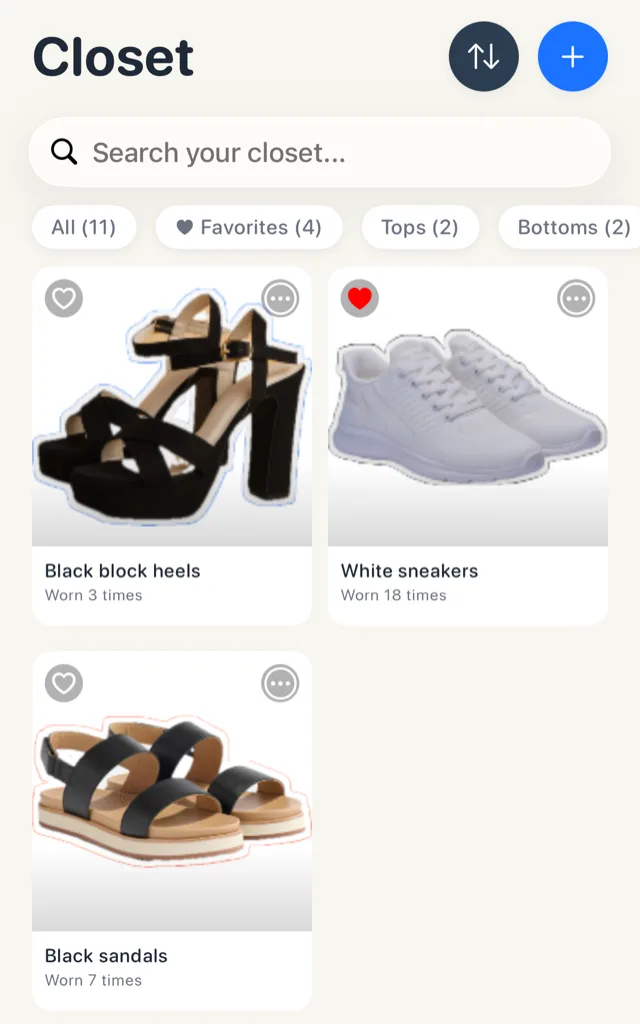
| Shoes | Sneakers, boots, heels, sandals |
| Accessories | Bags, belts, scarves, hats |
| Jewelry | Necklaces, earrings, watches |
| Activewear | Gym and sports clothes |
| Sleepwear | Pajamas and loungewear |
Resist the urge to split hairs. "Tops" is more useful than separate categories for tees, tanks and blouses, because you will usually want to see all of them at once when you are choosing what to wear with a pair of jeans. Looksy comes with these categories, plus Other, so you can start sorting straight away.
Step 5: Tag only what helps you get dressed
It is tempting to record everything: brand, size, fabric, price, where you bought it. That is fine if you enjoy it, but it is also how digital closets get abandoned after twenty items. Add the details that help you decide what to wear:
- Season. Spring, summer, fall, winter or all season. It lets you hide the wool coat in July.
- Occasion. Casual, work, formal, party, date, sport, loungewear.
- Color, if you often plan outfits around one.
- Favorite, for the pieces you reach for first.
Purchase price and date are worth adding for bigger buys if you like keeping track of what you spent. Everything else can wait.
Step 6: Start building outfits
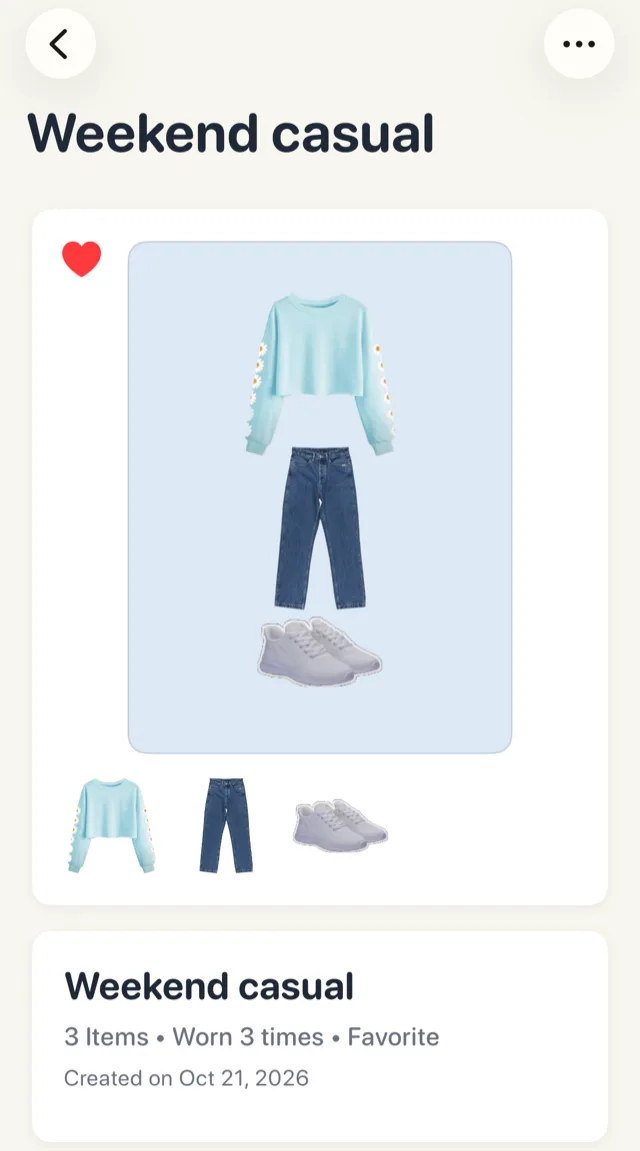
This is the payoff. With everything photographed, you can put a top, bottoms, shoes and a bag together on screen and see if they work, without trying anything on.
Save the combinations you like as outfits, give them a name ("Weekend casual", "Office Friday", "Date night"), and you have a menu to choose from on busy mornings. In Looksy these are called looks: you pick the pieces from your closet, arrange them on a canvas, and save the look.
Step 7: Keep it up to date
A digital closet only stays useful if it matches the real one. Three small habits do it:
- Add new pieces the day they arrive, before the tags come off.
- Mark what you wear. After a few weeks you can sort by least worn and see which pieces are just taking up space.
- Take out what leaves. When you donate or sell something, remove it or mark it as donated or sold, so your digital closet matches the real one.
Spreadsheet, photo album or app?
| Option | Good for | Downsides |
|---|---|---|
| Spreadsheet | Detailed lists, totals, sorting by any column | No pictures you can browse, slow to use on a phone |
| Photo album | Free and already on your phone | No categories or filters, no way to build outfits |
| Closet app | Cut-outs, categories, outfits, wear tracking | Free versions usually have limits |
If you only want an inventory, a spreadsheet is fine. If you want help getting dressed, use an app.
Looksy is free for up to 50 items, which is enough to digitize the clothes you wear most and build your first looks. Looksy+ removes the limit and adds iCloud backup.
Looksy: digital closet and outfit planner
Snap your clothes into a digital closet, put together looks, plan what to wear on a calendar, and see what you actually wear. Free for up to 50 items.

Common questions
How long does it take to digitize a closet?
It depends on how much you own. Doing one category per session keeps it manageable: tops one evening, bottoms the next, and so on. Most of the time goes into the photos, so set up your photo spot once and leave it there until you are done.
Do I have to photograph every single item?
No. Start with what you wear regularly, then add the rest when you see it. A closet with the 40 pieces you actually wear is more useful than a half-finished one with 200.
Can I use photos from the store's website?
Yes, if you still have them. Save the product photo to your phone and add it from your photo library. It is quicker than a photo session, but your own photo shows the real color and condition.
Is the background removal done online?
In Looksy, no. The item is cut out from the photo on your iPhone when you add it.
What is the best background for clothing photos?
A plain, flat surface in a color that contrasts with the piece: a white sheet for dark clothes, a gray or dark one for light clothes. Contrast makes the cut-out cleaner.